All features of GPT Image 2 Pro: from transparent backgrounds to exact sizes
Коротко о главном (BLUF)
В этом материале мы разбираем ключевые аспекты работы с нейросетями: актуальные модели, практические советы по промптам и примеры генераций. Читайте дальше, чтобы узнать подробности.
When creating images for social media, websites, or design projects, you often need more control than a standard generation form provides. The GPT Image 2 Pro model on NeuralSpace offers a complete set of professional settings: from choosing exact canvas dimensions in pixels to generating transparent backgrounds.

Let’s break down all the features and settings of this model so you can get exactly the result you envision.
Exact Canvas Size and Proportions
Instead of approximate aspect ratios (like 1:1 or 16:9), GPT Image 2 Pro lets you pick the exact canvas size.
- Square (1024×1024) — perfect for avatars and product cards.
- Portrait (1024×1536) — for stories, mobile posters, and landing pages.
- Landscape (1536×1024) — for covers, website headers, and wide cinematic scenes.
Three Quality (Rendering) Levels
You can control how many resources the model dedicates to detailing:
- Low — a fast and economical mode. Great for brainstorming when you need to quickly iterate through several composition ideas.
- Medium — a solid balance between speed and quality. Fits most social media tasks perfectly.
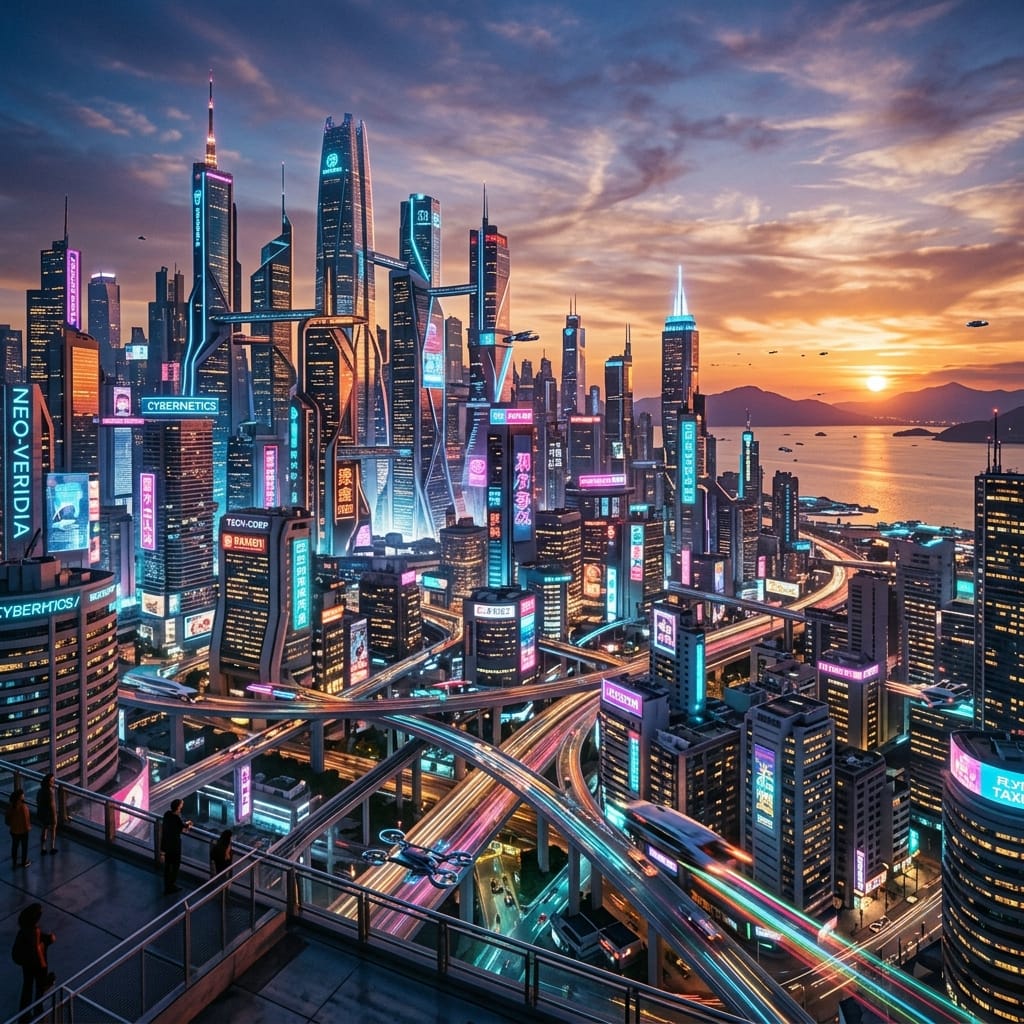
- High — maximum detailing, flawless textures, complex reflections, and precise background rendering.
Transparent Background
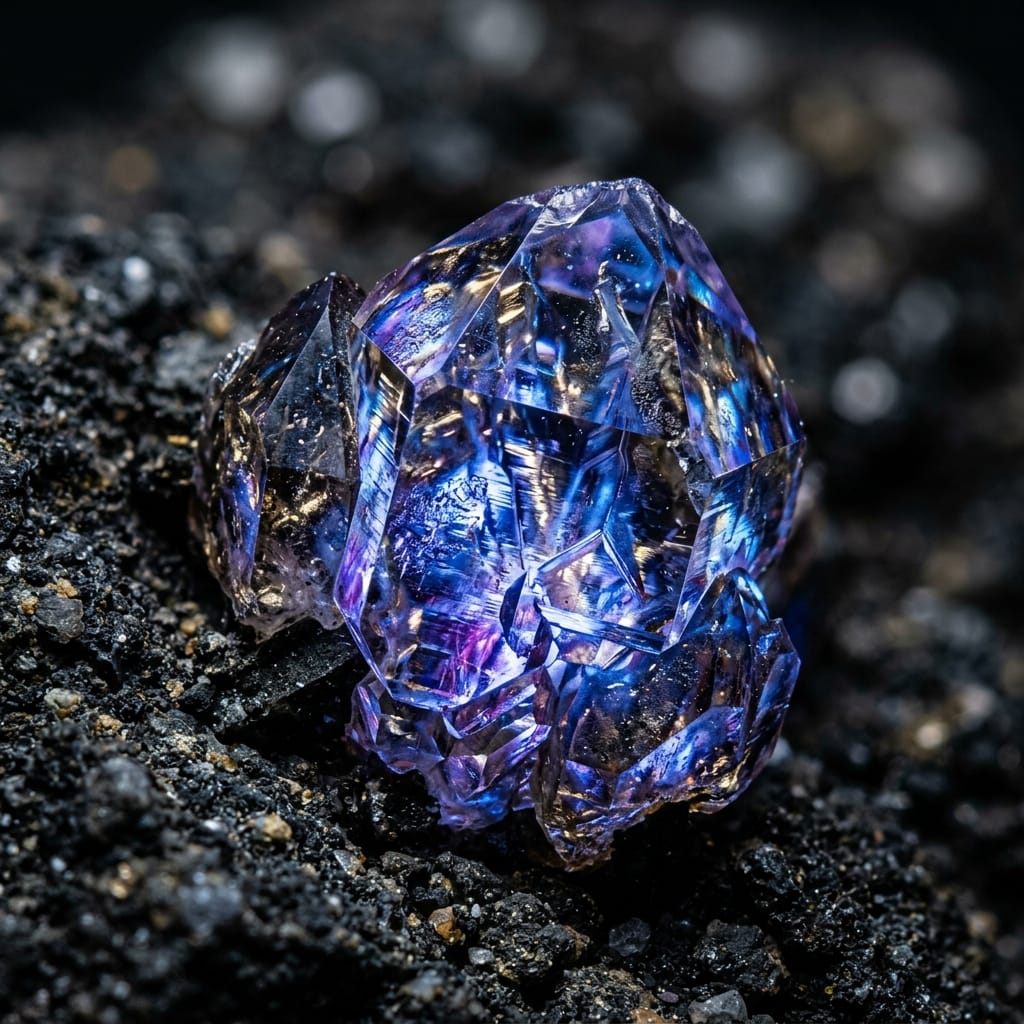
One of the most requested features for design is generating objects with a transparent background. This saves you from manually cutting out backgrounds in editors.
How it works: In the form settings, select the "Transparent" background mode (instead of "Auto" or "Opaque"). Important limitation: transparent backgrounds are only supported when you choose the PNG or WebP formats. JPEG technically does not support transparency, so this option is disabled for it.
References and Editing Mode
GPT Image 2 Pro allows you to upload up to 16 images as references. The moment you attach at least one picture and provide an instruction, the model automatically switches to editing mode.
When this happens, the high detail preservation mode is automatically activated. This means the model treats your source image with care: faces, textures, and tiny elements remain recognizable, while only the parts you requested to change are modified.
You can ask it to replace the background, change an object's color, remove unnecessary details, or assemble a new composition from multiple source files.
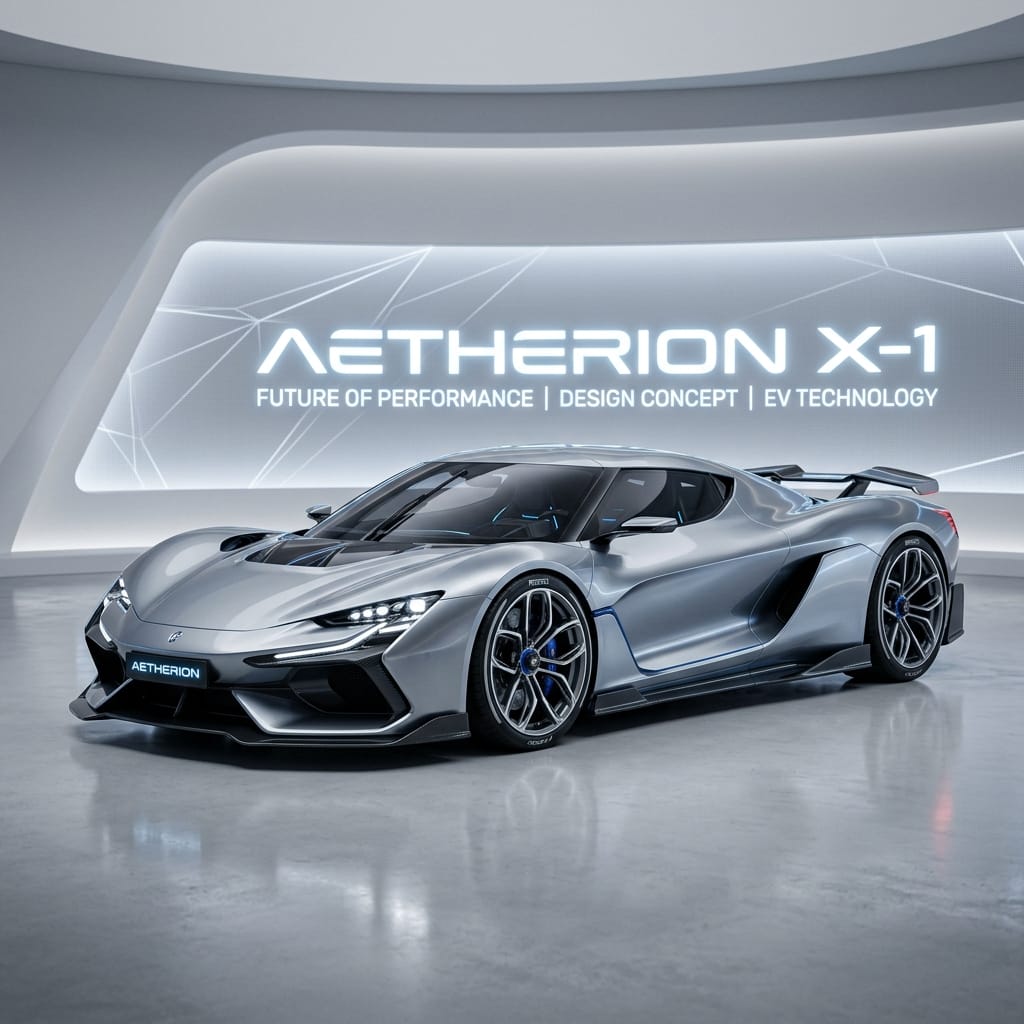
Text Generation on Images
The model understands typography exceptionally well. If you need a signboard, a neon sign, or text on a poster, simply include the desired phrase in quotes right in your prompt.
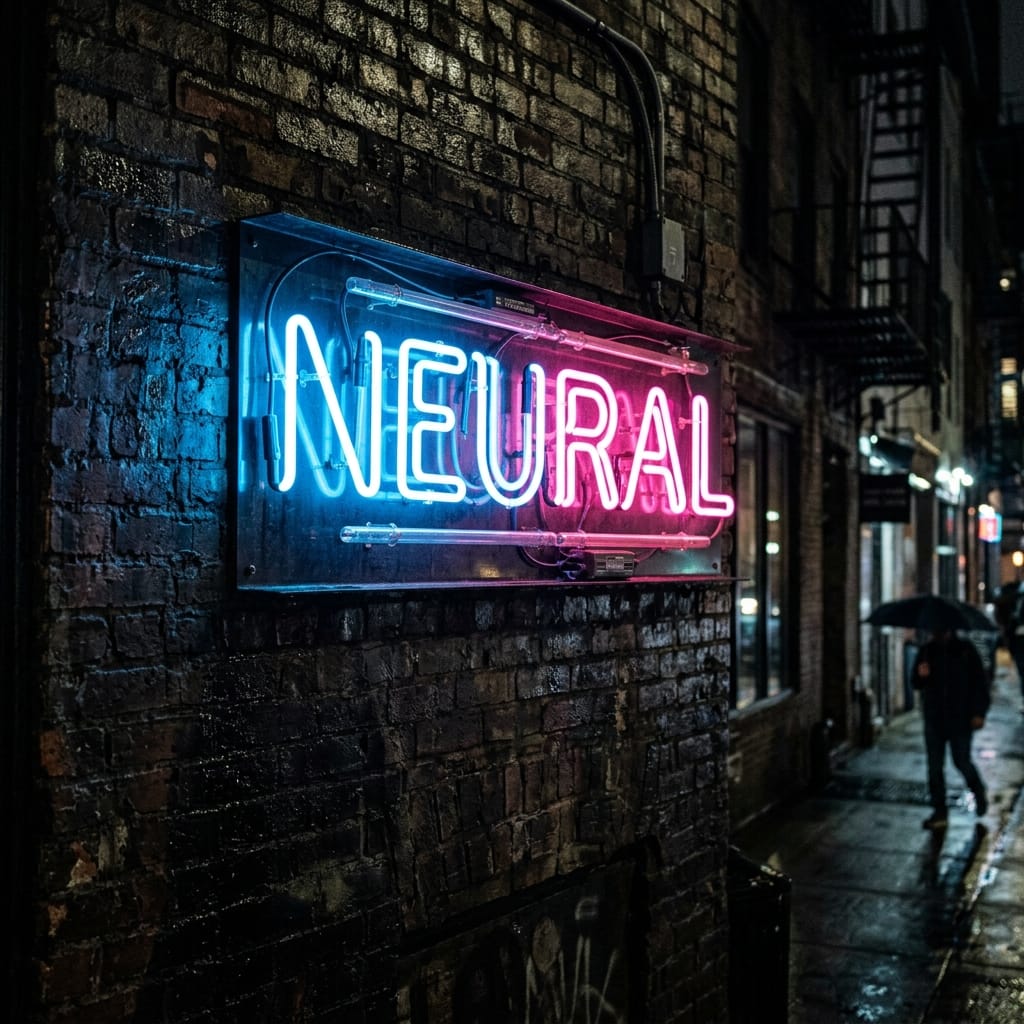
File Formats and Compression
Different tasks require different formats:
- JPEG — the lightweight default format accepted by all platforms.
- PNG — a lossless format, mandatory for preserving transparent backgrounds.
- WebP — a modern format with excellent compression, perfect for websites.
Take control of every detail in your generations. Try all the features of GPT Image 2 Pro right now.
Часто задаваемые вопросы (FAQ)
Вопрос: Как получить лучший результат от нейросети?
Ответ: Используйте подробные промпты (описания) на английском языке, задавайте стиль и детали сцены.
Вопрос: Можно ли использовать эти материалы в коммерческих целях?
Ответ: Да, сгенерированный контент полностью принадлежит вам.